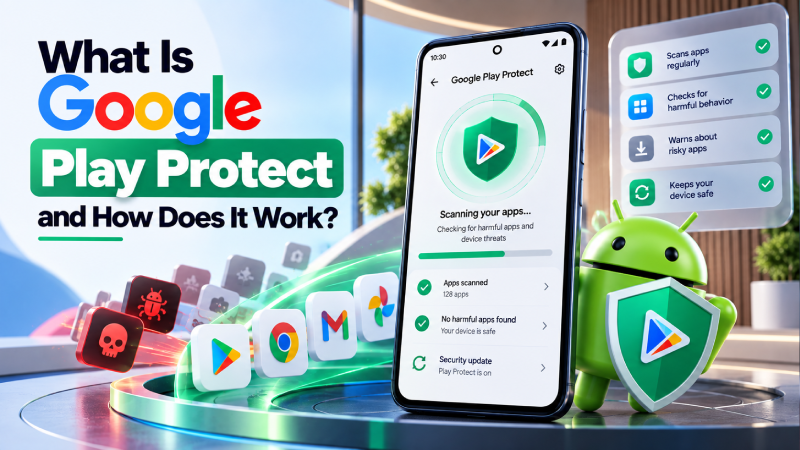
Google Play Protect is Android’s built in security system that checks apps and devices for potentially harmful behavior. It can scan apps before and after installation, check applications installed from sources outside Google Play, warn users about harmful apps, and in some cases disable or remove them.
For Android users, Play Protect provides an important layer of protection against malware and other unwanted software. It is enabled by default on supported devices, and Google recommends keeping it turned on.
If you are investigating unusual behavior on your Android phone, understanding how Play Protect works can help you decide what to check next.
What Is Google Play Protect?
Google Play Protect is a security service built into Android and Google Play. It checks applications for potentially harmful behavior and helps protect users from malicious or unwanted software.
Google says Play Protect checks apps when they are installed and periodically scans applications already on the device. It can also check apps installed from sources other than Google Play.
Play Protect can:
- Scan applications for potentially harmful behavior
- Warn you about harmful apps
- Disable certain harmful applications
- Remove harmful apps in some cases
- Check apps installed outside Google Play
- Provide some privacy-related alerts
- Block certain risky app installations
This makes Play Protect an important part of Android’s built in security system.
How Does Google Play Protect Work?
Play Protect uses multiple checks rather than relying on a single scan.
When you install an app through Google Play, Play Protect can check the application before installation. It also periodically scans applications already installed on your device.
Google says Play Protect can check potentially harmful applications from sources outside Google Play as well.
If Play Protect identifies an application as potentially harmful, it may:
- Show you a warning.
- Recommend that you uninstall the application.
- Disable the application.
- Remove the application automatically in some cases.
The exact action depends on the type and severity of the detected threat.
Does Google Play Protect Scan All Apps?
Play Protect can scan installed applications, including apps installed from outside Google Play.
This is important because Android users can install applications from APK files and other sources. Google says Play Protect checks potentially harmful apps from these other sources as well.
However, users should not interpret this as a reason to freely install applications from unknown websites.
Google recommends getting apps from Google Play and warns that applications from unknown sources can put your device and personal information at risk.
Does Play Protect Scan Apps Before Installation?
Yes.
Google says Play Protect checks apps when you install them and also performs periodic scans of the device.
This means Play Protect can provide protection at more than one point:
Before or during installation → Periodic device scanning → Warning or action when harmful behavior is detected
This layered approach is useful because an application can change or be identified as harmful after it has already been installed.
How to Run a Google Play Protect Scan
You can manually check your Android phone through the Google Play Store.
Step 1: Open Google Play Store
Open the Google Play Store application on your Android phone.
Step 2: Open Your Profile
Tap your profile picture in the top right corner.
Step 3: Select Play Protect
Tap Play Protect.
Step 4: Start a Scan
Follow the available option to scan your device.
The exact interface can vary slightly depending on your Android and Google Play version.
Google also states that Play Protect performs automatic periodic scans, so you do not necessarily need to manually scan your phone every day.
How to Check If Google Play Protect Is Enabled
Google Play Protect is enabled by default, but you can check its settings.
Open:
Google Play Store → Profile picture → Play Protect → Settings
Look for the option to Scan apps with Play Protect and make sure it is enabled.
Google recommends keeping Play Protect turned on for security.
If you install applications from outside Google Play, Google also provides an Improve harmful app detection setting that can help with checking unknown applications.
What Happens When Play Protect Finds a Harmful App?
The response depends on what Play Protect detects.
You may receive a warning telling you that an application could be harmful.
Depending on the situation, Play Protect may:
- Ask you to uninstall the app
- Disable the app
- Remove the app automatically
- Block the installation
- Display additional security information
Google says that in many cases, when a harmful app is detected, users receive a notification that the app was removed automatically.
If you receive a Play Protect warning, do not ignore it simply because the application appears familiar.
Instead, investigate the app and follow Google’s recommended action.
Can Google Play Protect Remove Malware?
Yes, Play Protect can remove harmful applications in certain situations.
Google says that if Play Protect detects a potentially harmful application, it may warn the user, disable the application, or remove it automatically.
However, Play Protect should not be treated as a guarantee that every form of malware will always be detected.
If your phone continues showing suspicious behavior after Play Protect has completed a scan, investigate recently installed applications, permissions, browser settings, and account security.
You can also follow our guide on how to remove malware from an Android phone for additional troubleshooting steps.
Can Play Protect Detect Apps Outside Google Play?
Yes.
Play Protect can check applications installed from sources outside Google Play. Google refers to these as potentially harmful applications and recommends keeping Play Protect enabled when using apps from other sources.
Google also warns that downloading applications from unknown sources can increase the risk to your device and personal information.
This is particularly important when installing APK files from websites, messaging apps, file-sharing services, or other unofficial sources.
What Does “Harmful App Blocked” Mean?
A Harmful App Blocked warning generally means Play Protect has identified an application as potentially harmful and is preventing or restricting its installation or use.
Google documents several types of Play Protect warnings, including warnings for harmful apps and applications that request sensitive permissions that can be abused for financial fraud.
If you see this warning, do not bypass it simply because you want to install the application.
First verify:
- Where the app came from
- Who developed it
- Why you need it
- Whether an official version exists
- Whether you downloaded it from an unexpected source
Why Does Play Protect Block Some APK Files?
An APK file is simply the Android application package format. The file itself is not automatically malicious.
The security concern comes from the application contained in the APK and where it came from.
Some applications installed outside Google Play may request sensitive permissions or exhibit behavior associated with fraud, malware, or other security risks.
Google says Play Protect may prevent some applications from being installed when they are unverified and use sensitive permissions that are commonly targeted for financial fraud.
If Play Protect blocks an APK, investigate the application rather than immediately disabling security protections.
What Is Improve Harmful App Detection?
Google Play Protect includes an option called Improve harmful app detection.
Google says this setting can be used when installing applications from unknown sources. When enabled, unknown applications can be sent to Google for additional evaluation.
You can find the setting through:
Google Play Store → Profile picture → Play Protect → Settings
This can be particularly useful if you occasionally install applications from outside Google Play.
However, the safest approach for most users is still to obtain applications through trusted sources.
Should You Turn Off Google Play Protect?
For most users, there is little reason to turn Play Protect off.
Google recommends keeping Play Protect enabled because it provides ongoing protection against potentially harmful applications.
If an app asks you to disable Play Protect before you can use it, treat that request carefully.
Google’s mobile unwanted software policy specifically says apps must not deceive users into turning off device security protections such as Google Play Protect.
A legitimate reason to change a security setting should be clear and understandable. Users should not disable protection simply because an unfamiliar app or website tells them to.
Google Play Protect vs Antivirus Apps
Google Play Protect and third party antivirus applications are not exactly the same thing.
Play Protect is integrated into the Google Play and Android ecosystem and is designed to provide built in protection against potentially harmful applications.
Some third party security products provide additional features such as:
- Web protection
- Phishing protection
- Privacy monitoring
- Identity protection
- Device optimization
- Additional malware scanning
Whether you need additional security software depends on your device, usage, and security needs.
For many users, keeping Android updated, using trusted apps, reviewing permissions, and leaving Play Protect enabled are important baseline security practices.
Google Play Protect vs Play Protect Certification
These two terms are easy to confuse.
Google Play Protect is the security system that checks applications and devices for potentially harmful software.
Play Protect certification refers to whether a device has passed Google’s Android compatibility testing and is certified to use licensed Google apps such as the Google Play Store.
Google explicitly states that device certification is separate from Google Play Protect.
Therefore, seeing a “Play Protect certified” status is not the same thing as checking whether Play Protect is currently scanning your apps.
How to Check Play Protect Certification
If you want to check whether your device is Play Protect certified:
- Open the Google Play Store.
- Tap your profile picture.
- Tap Settings.
- Open About.
- Look for Play Protect certification.
Google says only certified devices have passed Android compatibility testing and are eligible to include licensed Google apps such as Google Play.
Can Play Protect Detect Every Android Virus?
No security system should be treated as a guarantee against every possible threat.
Play Protect is designed to detect potentially harmful applications and provide warnings or protective actions, but new threats can evolve.
If you suspect your Android phone has malware, do not rely on one scan alone.
For example, some Android banking threats use advanced techniques to interact with infected devices. You can learn more in our guide to RemControl Android malware.
Check:
- Recently installed applications
- App permissions
- Accessibility access
- Browser notifications
- Android security updates
- Account activity
- Unusual device behavior
Our guide on how to tell if your Android phone has malware covers these warning signs in more detail.
What to Do If Play Protect Finds Malware
If Play Protect identifies a harmful application:
1. Follow the warning
Read the Play Protect notification and follow the recommended action.
2. Uninstall the harmful application
If Google recommends removing the app, uninstall it rather than ignoring the warning.
3. Check other installed apps
If the application came from an unknown source, review other applications installed around the same time.
4. Update Android
Install available Android and security updates.
5. Review permissions
Check whether suspicious applications had access to sensitive information.
6. Secure important accounts
If you entered passwords, financial information, or other sensitive data while the suspicious application was active, secure those accounts from a trusted device.
7. Continue troubleshooting if symptoms remain
If the phone continues behaving strangely, follow a broader Android malware-removal process.
How Play Protect Fits Into Android Security
Play Protect is only one part of a broader Android security strategy.
A safer approach combines:
Play Protect + Android updates + trusted apps + permission management + account security + careful browsing
For example, an Android phone can have Play Protect enabled but still be exposed to problems if the user knowingly grants sensitive access to an untrusted application.
That is why understanding permissions and app behavior remains important.
Our guide on Android Accessibility Service explains why certain Android capabilities require additional attention.
Can You Use Android Without Google Play Protect?
Some Android devices and custom Android versions may operate without Google’s Play services or Play Protect.
However, Google Play Protect is an important layer of protection on supported Android devices.
If your device supports Play Protect, keeping it enabled is Google’s recommended approach.
Devices without Play Protect certification may also have different security and compatibility considerations. Google notes that uncertified devices may not be secure and may not receive some system or app updates.
Does Play Protect Use Antivirus Technology?
Play Protect performs security checks designed to identify potentially harmful applications, but it is better understood as part of Android’s broader security system rather than simply a traditional desktop antivirus product.
Google describes its protection in terms of identifying Potentially Harmful Applications and using automated systems and human security expertise to detect and classify threats.
This allows Play Protect to combine app scanning, warnings, installation protections, and other security measures.
Frequently Asked Questions
What is Google Play Protect?
Google Play Protect is Android’s built in protection system that checks apps and devices for potentially harmful behavior. It can warn users about harmful apps and may disable or remove them.
Is Google Play Protect free?
Yes. Google Play Protect is included as part of the Android and Google Play ecosystem on supported devices.
Does Google Play Protect scan all installed apps?
Play Protect can scan installed applications, including apps installed from outside Google Play. Google also performs periodic device scans.
Can Google Play Protect remove malware?
Yes. When Play Protect detects a harmful application, it may warn you, disable the app, or remove it automatically depending on the situation.
Should I keep Google Play Protect turned on?
Yes. Google recommends keeping Play Protect enabled to help protect your device from potentially harmful applications.
Can Play Protect scan APK files?
Play Protect can check applications installed from sources outside Google Play. It may also warn or block certain risky applications.
Why is Play Protect blocking an app?
Play Protect may block an application when it identifies security risks or behavior associated with harmful software. Some unverified apps requesting sensitive permissions may also be blocked because those permissions can be abused for financial fraud.
Is Play Protect the same as Play Protect certification?
No. Play Protect is Google’s harmful-app protection system. Play Protect certification refers to whether a device has passed Android compatibility testing. Google states that the two are separate.
Do I need another antivirus app if Play Protect is enabled?
Play Protect provides built in Android protection, but additional security software can provide other features. Your security needs depend on how you use your device and which additional protections you want.
What should I do if Play Protect finds a harmful app?
Follow the warning, remove the harmful application if recommended, update Android, review permissions, and investigate your accounts if sensitive information may have been exposed. If problems continue, follow a broader Android malware-removal process.
Final Thoughts
Google Play Protect is an important built in security layer for Android users. It checks applications before and after installation, scans installed apps, including apps from outside Google Play, and can warn about, disable, or remove potentially harmful applications.
For the best protection, keep Play Protect enabled, install Android updates, download applications from trusted sources, and pay attention to unexpected permission requests or security warnings.
If you are dealing with suspicious behavior right now, start with Play Protect and then investigate the other possible causes rather than assuming every Android problem is malware.