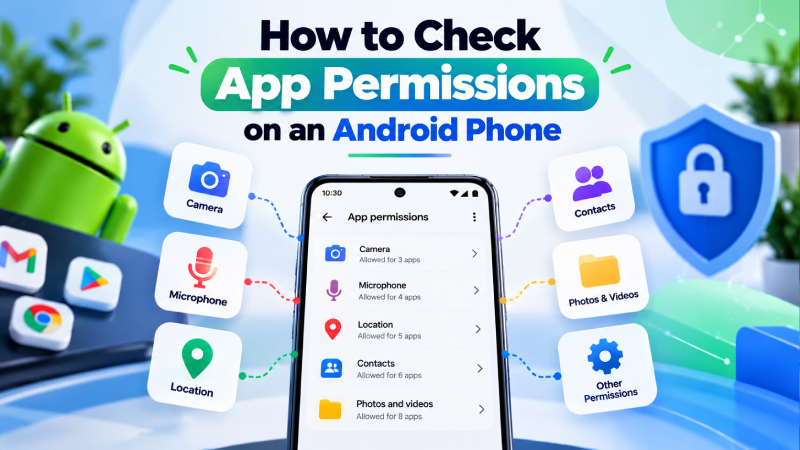
Android app permissions control what applications can access on your phone. Depending on the app, permissions can provide access to information or features such as your location, camera, microphone, contacts, photos, files, notifications, and SMS.
Reviewing these permissions regularly can help you understand what your apps can access and identify permissions that may no longer be necessary.
Android allows you to manage permissions for individual apps or review apps by permission type. The exact menu names can vary depending on your Android version and phone manufacturer.
What Are App Permissions on Android?
App permissions are controls that determine whether an application can access certain information or features on your Android phone.
For example, a navigation app may need location access, while a messaging app may need access to contacts or notifications.
Android permissions help protect access to restricted data and actions. Google’s Android documentation identifies information such as contacts and location, along with capabilities such as recording audio, as resources that can require permission.
When an app requests certain permissions, Android can show a permission prompt where you can allow or deny access.
Why Should You Check Android App Permissions?
An application does not necessarily need access to everything on your phone to work correctly.
Reviewing permissions can help you:
- Understand what an app can access
- Remove unnecessary access
- Limit access to sensitive information
- Identify unusual permission requests
- Improve your privacy
- Investigate suspicious applications
- Reduce the impact of a compromised app
A permission request alone does not mean an app is malicious. The important question is whether the requested access makes sense for the app’s purpose.
For example, a navigation app requesting location access is expected. A simple calculator requesting access to your SMS messages may deserve closer attention.
How to Check App Permissions on Android
You can check permissions for an individual application through Android Settings.
On many Android devices, the process is:
- Open Settings.
- Tap Apps.
- Select the application you want to check.
- Tap Permissions.
- Review the permissions listed for that app.
- Select a permission to change its access.
Google’s current Android guidance follows this general path, although the exact labels can vary between devices and Android versions.
How to Change App Permissions
After opening an app’s permissions page, select the permission you want to change.
Depending on the permission and Android version, you may see options such as:
- Allow
- Don’t allow
- Allow only while using the app
- Ask every time
- Allow all the time for certain location access
Google notes that location, camera, and microphone permissions can have different access options depending on the device and Android version.
Before changing a permission, consider whether the app actually needs it for a feature you use.
How to Check Permissions by Permission Type
Instead of checking applications one at a time, you can review which apps have access to a particular type of information.
On supported Android devices:
- Open Settings.
- Go to Security & Privacy or Privacy.
- Open Permission manager.
- Select a permission type.
- Review the apps that have access.
- Select an app to change its permission.
This is useful when you want to find every app that can access your camera, microphone, location, contacts, or another permission.
How to Check Which Apps Recently Used Permissions
Android’s Privacy Dashboard can show which apps have accessed certain permissions.
On supported versions:
- Open Settings.
- Tap Security and Privacy or Privacy.
- Open Privacy dashboard.
- Select the permission you want to investigate.
- Review which apps accessed it and when.
Google says Android 13 and later can show app activity over the previous seven days, while Android 12 can show activity over the previous 24 hours. Availability can vary by Android version.
This can be especially useful if you are trying to understand why an application recently accessed your microphone, camera, location, or another sensitive permission.
Camera Permission on Android
Camera access allows an app to use your device’s camera.
Apps such as:
- Camera apps
- Video calling apps
- Social media apps
- QR scanners
- Video editing tools
may have legitimate reasons to request camera access.
If an unrelated app has camera access, review why it needs the permission.
On Android 12 and later, when an app uses the camera, Android can display a green indicator at the top of the screen. You can tap the indicator to see which app or service is using the camera.
Microphone Permission on Android
Microphone permission allows an application to record audio through the device microphone.
Common examples include:
- Voice recorder apps
- Video calling apps
- Voice assistants
- Messaging apps
- Audio and video applications
If an application has no obvious reason to record audio, review its microphone permission.
Android can display a green indicator when the microphone is being used on supported versions. You can tap the indicator to identify the app or service using the microphone.
Location Permission on Android
Location access allows applications to use information about where your device is located.
For example:
- Google Maps needs location for navigation.
- A weather app may use location to provide local forecasts.
- A ride-sharing application may need location to match you with a driver.
Android can provide different levels of location access, including approximate or precise location and options such as allowing access only while an app is being used.
To review location permissions, you can generally go to:
Settings → Location → App location permissions
From there, review which apps can use your location and change their access if necessary.
Contacts Permission
Contacts permission allows an app to access information stored in your contacts.
Messaging, calling, email, and social applications may have legitimate reasons to request contacts access.
However, you should question the need for contacts access when an app’s primary function does not appear to require it.
If you do not use a feature that requires contacts access, you can review whether the app still needs that permission.
SMS Permission
SMS access can be particularly sensitive because messages may contain verification codes, account notifications, and other private information.
Only grant SMS access when the application’s functionality clearly requires it.
If an unfamiliar application requests access to your SMS messages, investigate the app before granting permission.
This is especially important when you are investigating possible malware or suspicious applications.
Photos and Videos Permission
Applications may request access to photos and videos stored on your device.
Examples include:
- Photo editors
- Social media apps
- Messaging apps
- Cloud storage applications
- Video editors
Android’s permission system and newer photo-selection features can limit how applications access your media.
If an application does not need access to your photos or videos for a feature you use, consider limiting or denying the permission.
Files Permission
File access can provide an application with access to information stored on your device.
Be careful when an unfamiliar application asks for broad file access.
Before granting access, check:
- Who developed the application
- Where you downloaded it
- Why it needs the access
- Whether the feature actually requires it
- Whether an official alternative exists
Avoid granting broad access simply because an app says that the permission is required without explaining why.
Nearby Devices Permission
Some Android applications need access to nearby devices for features involving Bluetooth or other device connections.
Examples can include:
- Wireless headphones
- Smartwatches
- Fitness devices
- Smart home equipment
- Nearby device setup
If an app has nearby-device access but you cannot identify a reason for it, review the permission.
Notifications Permission
Notification access allows an app to send notifications to your device.
While notifications may appear less sensitive than camera or microphone access, they can still expose information on your screen.
Review notification access if an app displays unexpected messages, promotions, or suspicious alerts.
If unwanted notifications started after installing a particular application, investigate that application and its notification settings.
Physical Activity and Health Permissions
Some applications can request access to physical activity or health-related information.
Fitness, health, smartwatch, and activity-tracking applications may have legitimate reasons for these permissions.
However, you should still review which applications have access and whether you recognize them.
Google’s current permission documentation includes categories such as physical activity and health, wellness, and fitness data on supported Android versions.
What Permissions Should You Be Careful With?
Not every permission has the same privacy implications.
Pay particular attention to permissions that can provide access to sensitive information or device capabilities, including:
- Location
- Camera
- Microphone
- Contacts
- SMS
- Call logs
- Photos and videos
- Files
- Health information
- Physical activity
- Nearby devices
Android’s developer documentation describes runtime permissions as providing access to restricted data or actions that can have a greater effect on privacy and other apps.
Is a Permission Request a Sign of Malware?
No.
A permission request by itself does not mean an application contains malware.
Many legitimate applications require permissions to provide their main functionality.
Instead, consider the relationship between the permission and the app.
For example:
Reasonable:
A video calling app requests microphone and camera access.
Worth reviewing:
A simple flashlight app requests contacts, SMS, microphone, and location access.
This does not automatically prove that the flashlight app is malicious, but the permission requests would be unusual enough to investigate.
How Malware Can Abuse App Permissions
Malicious applications may attempt to obtain sensitive permissions to increase what they can access or do on a device.
The risk becomes greater when users grant permissions without understanding what they allow.
Some Android threats may also attempt to abuse other powerful capabilities, including accessibility access.
If you are concerned about suspicious accessibility access, read our guide on Android Accessibility Service and how it works.
If you are already seeing multiple unusual symptoms, our guide on how to tell if your Android phone has malware can help you identify common warning signs.
How to Find Suspicious App Permissions
When reviewing an unfamiliar app, ask:
- Did I intentionally install it?
- Did I download it from Google Play or another trusted source?
- Does its purpose explain the permissions it requests?
- Does it request several sensitive permissions?
- Did the permission request appear unexpectedly?
- Did unusual phone behavior begin after installing it?
- Does the developer appear legitimate?
- Can the app function without the permission?
If several answers raise concerns, investigate the app before continuing to use it.
What If an App Requests Too Many Permissions?
An application requesting several permissions is not automatically malicious.
Some apps legitimately require multiple permissions because they provide multiple features.
For example, a social media application may need access to the camera, microphone, photos, and notifications because it offers photo uploads, video recording, calls, and messaging.
The key is whether the requested access matches the application’s functionality.
Android’s developer guidance encourages apps to request only the permissions necessary for their intended use.
What Are Restricted Settings on Android?
Android can restrict certain sensitive settings when applications are installed from some sources.
Google explains that harmful applications may try to persuade users to change settings that could put their devices or personal information at risk. Restricted settings can provide an additional layer of protection.
This is particularly relevant when an unfamiliar application asks you to enable a powerful capability simply to continue using it.
Do not automatically enable a restricted setting because an app tells you to.
First verify that you trust the application and understand why the setting is required.
How Google Play Protect Helps With Suspicious Apps
App permissions and malware protection work together.
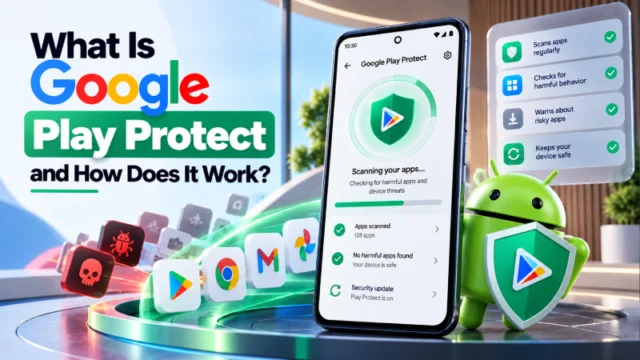
Google Play Protect can check applications for potentially harmful behavior, including apps installed from outside Google Play.
If you are reviewing permissions because you suspect a malicious application, running a Play Protect scan is another useful step.
Read our guide on Google Play Protect to learn how Android’s built-in protection works.
Should You Deny Unused App Permissions?
If an app does not need a permission for a feature you use, reviewing or restricting that access can reduce unnecessary exposure.
However, removing a permission may affect part of the application’s functionality.
For example, denying microphone access will prevent a voice recording or calling feature from using the microphone.
If something stops working after changing a permission, you can review the permission again and decide whether to restore access.
How to Automatically Remove Permissions From Unused Apps
Android can automatically pause activity for some unused applications.
Google’s current Android permission guidance provides an option under an app’s settings to turn on Pause app activity if unused on supported devices.
This can help reduce unnecessary access from applications that you no longer actively use.
The exact availability and wording may vary depending on the Android version and device.
What to Do If You Find a Suspicious App
If an application has unusual permissions and you do not trust it, do not immediately assume that it is malware.
Instead:
- Review the app’s permissions.
- Check when you installed it.
- Check its developer and source.
- Search for the app’s legitimate purpose.
- Remove permissions that are unnecessary.
- Run Google Play Protect.
- Uninstall the application if you determine that it is unsafe or unnecessary.
- Check your accounts if the application may have accessed sensitive information.
If the suspicious application cannot be removed or your phone continues behaving unusually, follow our guide on how to remove malware from an Android phone.
What If a Suspicious App Has Accessibility Access?
Accessibility access is different from ordinary permissions and can provide powerful capabilities.
If you find an unfamiliar application with accessibility access, review it carefully.
Do not disable legitimate accessibility tools that you or another person rely on. Instead, identify the service and determine whether its purpose matches the application.
Our detailed guide to Android Accessibility Service explains how this feature works and why unexpected accessibility access deserves attention.
How Often Should You Check Android App Permissions?
There is no need to check every permission every day.
A practical time to review permissions is when:
- You install a new application
- An app requests a sensitive permission
- Your phone starts behaving unusually
- You update or reinstall an application
- You stop using an application
- You notice unexpected camera or microphone activity
- You are investigating a possible security problem
You can also use Android’s Privacy Dashboard on supported devices to review recent permission activity.
Frequently Asked Questions
How do I check app permissions on Android?
Open Settings → Apps → select the app → Permissions on many Android devices. You can also use Permission manager to review apps by permission type. The exact menu can vary by device and Android version.
How do I see which apps have access to my camera?
Open Android’s permission settings and review the apps listed under Camera. On supported Android versions, you can also see when the camera is being used through the green privacy indicator.
How do I stop an app from accessing my location?
Open the app’s permissions and change its Location setting. Depending on the Android version, you may be able to choose options such as allowing access only while using the app, asking every time, or denying access.
Can I deny permissions after installing an app?
Yes. Android allows you to change permissions after installation for supported permissions and devices. You can allow or deny individual permissions through the app’s settings.
Should I allow every permission an app requests?
No. Review why the app needs each permission before granting it. If a permission does not appear relevant to the app’s main functionality, investigate it before allowing access.
Can malware use Android app permissions?
Malicious applications can attempt to abuse permissions to gain access to sensitive information or device capabilities. However, having multiple permissions does not by itself prove that an app is malicious.
What is Android Permission Manager?
Permission Manager is an Android settings feature that lets you review which apps have access to particular permission types and change those settings.
What is the Privacy Dashboard?
Privacy Dashboard lets supported Android devices show which apps have accessed certain permissions and when that access occurred. It can also provide controls for managing those permissions.
Can I turn off camera and microphone access for all apps?
On supported Android devices, you can use privacy controls or Quick Settings to turn camera or microphone access off at the device level.
Does denying a permission remove malware?
No. Denying a permission only changes the access available to an application. If you suspect malware, you should also investigate the app, run Google Play Protect, remove suspicious software, and follow appropriate malware-removal steps.
Final Thoughts
Android app permissions give you control over which applications can access sensitive information and device features. Reviewing them does not require advanced technical knowledge.
Start with the apps you use most often, pay particular attention to sensitive permissions such as location, camera, microphone, contacts, and SMS, and investigate requests that do not appear connected to an application’s purpose.
For broader Android security, combine permission management with Google Play Protect, regular software updates, trusted app sources, and careful attention to unusual device behavior.