Android Accessibility Service is a system feature that helps apps provide accessibility functions to people who may have difficulty seeing, hearing, moving, or interacting with a phone in the usual way. Features such as screen readers, voice controls, switch access, and other assistive tools can use Android’s accessibility framework.
At the same time, Accessibility Service can provide powerful access to device interfaces. This means users should understand which apps have accessibility access and why they need it.
If you are investigating Android malware, reviewing accessibility access can also be useful. Some harmful apps may attempt to abuse sensitive Android capabilities. However, having Accessibility Service enabled does not mean that an app is malicious.
What Is Android Accessibility Service?
Android Accessibility Service is a framework that allows an app to assist users with disabilities by interacting with information and controls presented by Android and other applications.
According to Android’s developer documentation, an accessibility service is managed by the Android system and is started when the user explicitly enables it in device settings.
This framework supports legitimate accessibility tools such as screen readers, alternative input methods, and other assistive technologies.
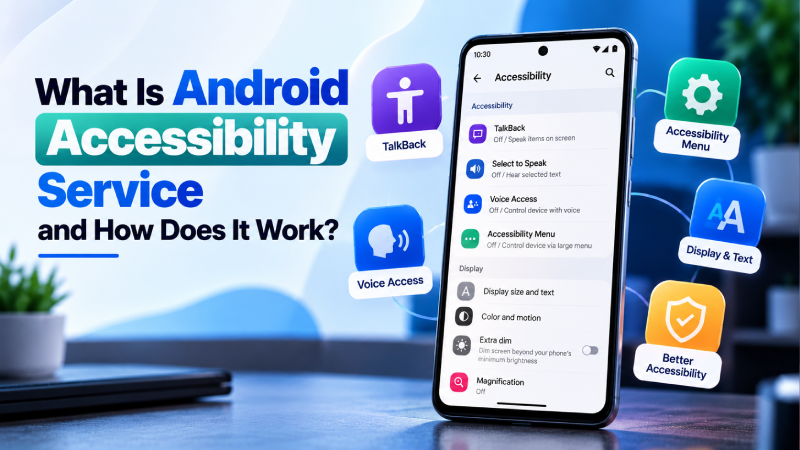
Google’s Android accessibility documentation includes features such as TalkBack, Voice Access, Switch Access, magnification, Select to Speak, captions, and the Accessibility Menu.
What Does Accessibility Service Do?
An accessibility service can help an app understand and interact with parts of the Android user interface.
Depending on the service and its purpose, accessibility features can help users:
- Read information displayed on the screen
- Navigate through applications
- Control a device using alternative input methods
- Receive spoken feedback
- Interact with buttons and other controls
- Use accessibility shortcuts
- Perform actions that would otherwise be difficult
The exact capabilities depend on the accessibility service and how it is designed.
Android manages the service lifecycle, and the user must explicitly enable an accessibility service through device settings.
Why Do Apps Use Accessibility Service?
Accessibility Service exists primarily to make Android devices easier to use.
For example, a person with limited vision may use TalkBack to hear descriptions of items on the screen. Someone with limited mobility may use Switch Access or Voice Access to interact with a device using alternative input methods.
Android’s Accessibility Menu can also provide an easier way to control functions such as navigation, volume, notifications, screenshots, and other device controls.
This means seeing an accessibility service on an Android phone is not automatically a security warning.
The important question is:
Why does this particular app need accessibility access?
Common Examples of Android Accessibility Features
TalkBack
TalkBack is a screen reader that provides spoken feedback and descriptions of what users touch on their device.
It can help people with visual impairments navigate Android and interact with applications.
Voice Access
Voice Access allows users to control an Android device using voice commands.
It can be useful for people who have difficulty using touch controls.
Switch Access
Switch Access provides alternative ways to interact with Android for users who may have difficulty using a touchscreen.
Accessibility Menu
The Accessibility Menu provides a large on-screen menu that can make common device controls easier to access.
Google’s current Android accessibility documentation lists these and other accessibility features as part of the Android accessibility ecosystem.
Is Accessibility Service a Security Risk?
Accessibility Service itself is not malware.
The security concern comes from how an application uses the access it receives.
Google explains that when restricted settings allow accessibility access, an app may be able to read content on the screen and interact with other apps on the user’s behalf. Google therefore recommends not allowing restricted settings unless you trust the app developer.
This is why users should be careful when an unfamiliar application suddenly asks them to enable accessibility access.
An app that provides a legitimate accessibility function may have a reasonable reason for requesting it. An unrelated app asking for powerful accessibility access deserves closer inspection.
Can Android Malware Abuse Accessibility Service?
Yes, malicious applications can attempt to abuse powerful Android capabilities, including accessibility access.
A malicious app may try to use accessibility capabilities to interact with the device interface or assist with actions that the user did not intend to perform.
This is one reason accessibility access can be relevant when investigating Android malware.
However, accessibility access alone is not proof of malware. You should consider the app’s source, purpose, permissions, behavior, developer, and other warning signs before deciding that an application is unsafe.
If you want to learn about another Android threat that uses powerful device capabilities, see our guide to RemControl Android malware.
How to Check Accessibility Services on Android
The exact menu can vary depending on your Android version and phone manufacturer.
On many Android phones, you can start by:
- Open Settings.
- Tap Accessibility.
- Review the available accessibility features and services.
- Check which services are currently enabled.
- Select an unfamiliar service to learn more about it.
- Disable it if you do not need it and the option is available.
Google’s current Android accessibility guidance places accessibility features under Settings → Accessibility, although the exact navigation and feature names can vary by device and market.
How to Know If an Accessibility Service Is Suspicious
An accessibility service deserves closer attention when several warning signs appear together.
Be cautious if:
- You do not remember installing the app.
- The app came from an unknown website.
- Its purpose has nothing to do with accessibility.
- It suddenly asks you to enable accessibility access.
- It uses deceptive instructions to obtain access.
- You notice unusual pop ups or redirects after installing it.
- The app requests several unrelated sensitive permissions.
- Your phone begins behaving differently after enabling the service.
None of these signs alone proves that an app is malicious. They are reasons to investigate further.
Why Would a Normal App Need Accessibility Access?
Some legitimate applications can have accessibility-related purposes.
For example, screen readers and alternative input tools need access to parts of the interface to perform their intended functions.
Google’s Play policy recognizes legitimate accessibility tools such as screen readers and switch-based input systems. It also places restrictions on how developers can use the Accessibility API.
Therefore, do not disable every accessibility service simply because it has powerful capabilities.
Instead, evaluate whether the access matches the application’s stated purpose.
Android Accessibility Service vs Normal App Permissions
Accessibility access is different from common permissions such as camera, microphone, location, or contacts.
Normal Android permissions generally control access to specific types of device data or functionality.
Accessibility services are designed to help users interact with Android and can provide an app with the ability to observe and interact with parts of the user interface.
Because of this, accessibility access should be treated as a sensitive capability, especially when requested by an unfamiliar application.
What Are Restricted Settings on Android?
Android uses restricted settings to provide additional protection around certain sensitive capabilities.
Google explains that enabling restricted settings can allow apps to access sensitive information that could put personal data at risk. Google specifically gives accessibility access as an example and recommends allowing restricted settings only when you trust the app developer.
On supported Android versions, you may see the option under:
Settings → Apps → Select the app → More → Allow restricted settings
The exact interface can vary by Android version and device.
Should You Allow Accessibility Access to an Unknown App?
You should not enable powerful accessibility access simply because an unfamiliar app tells you to do so.
First ask:
- Did I intentionally install this app?
- Is it from a trusted source?
- Does its purpose require accessibility functionality?
- Is the developer identifiable?
- Does the app request other unusual permissions?
- Did the request appear unexpectedly?
- Did the phone begin behaving differently after installation?
If the answers raise concerns, do not grant the access until you have verified the application.
What to Do If You Find an Unknown Accessibility Service
If an unfamiliar application has accessibility access, take a cautious approach.
Step 1: Identify the app
Check the app’s name, developer, installation source, and purpose.
Step 2: Disable unnecessary access
If you do not need the accessibility service, turn it off where Android allows you to do so.
Step 3: Review other permissions
Check whether the same app also has access to sensitive information such as SMS, notifications, files, contacts, camera, microphone, or location.
Step 4: Run Google Play Protect
Run a Play Protect scan to check for potentially harmful applications.
Step 5: Remove the application if necessary
If the app is unfamiliar, unnecessary, or clearly suspicious, uninstall it if possible.
For a broader malware investigation, see our guide on how to tell if your Android phone has malware and our step-by-step guide on how to remove malware from an Android phone.
Can Accessibility Service Read Everything on Your Phone?
It is not accurate to say that every accessibility service can automatically read everything on an Android phone.
The capabilities available to an accessibility service depend on the Android framework, service configuration, user-granted access, and the app’s implementation.
However, accessibility access can be powerful enough to interact with parts of the user interface and observe accessibility-related information. That is why Android and Google Play apply additional protections and policies around its use.
How Google Play Handles Accessibility Service
Google Play has specific rules governing use of the Accessibility API.
Google says apps using the API must comply with Play policies, and autonomous behavior that independently initiates, plans, and executes actions is restricted except for qualifying accessibility tools whose core purpose is assisting people with disabilities.
This policy exists because accessibility capabilities can be powerful and should not be used deceptively or for unrelated harmful behavior.
Does Disabling Accessibility Service Remove Malware?
Not necessarily.
Disabling an accessibility service can remove one type of access from an application, but it does not automatically prove that malware has been removed.
If you suspect an application is malicious, continue with a broader security check:
- Disable suspicious access.
- Run Google Play Protect.
- Uninstall the suspicious application.
- Review other permissions.
- Install available Android and security updates.
- Check your important accounts for unusual activity.
- Follow Google’s malware-removal guidance if suspicious behavior continues.
For more detailed removal steps, see our guide on how to remove malware from an Android phone.
How to Stay Safe From Accessibility Abuse
You can reduce the risk of accessibility abuse by following a few simple habits:
Install Apps From Trusted Sources
Prefer reputable app stores and avoid installing applications from unknown websites or unexpected links.
Don’t Enable Sensitive Access Without Checking
If an application suddenly asks for accessibility access, stop and verify why it needs it.
Keep Android Updated
Install available Android and security updates.
Keep Play Protect Enabled
Google Play Protect can check applications for potentially harmful behavior and may warn, disable, or remove harmful apps.
Review Installed Apps Regularly
Remove applications you no longer use and investigate unfamiliar software.
Be Careful With “Allow” Instructions
Do not blindly follow instructions from an app, website, pop-up, or message telling you to enable powerful Android settings.
Frequently Asked Questions
What is Android Accessibility Service?
Android Accessibility Service is a framework that allows accessibility apps to assist users by interacting with parts of the Android interface. It supports features such as screen readers and alternative input methods.
Is Android Accessibility Service safe?
The Accessibility Service framework is a legitimate Android feature. The security risk depends on how an individual application uses the access and whether the app is trustworthy.
Can malware use Accessibility Service?
Malicious applications can attempt to abuse powerful accessibility capabilities. However, an app using Accessibility Service is not automatically malware.
Should I disable Accessibility Service?
You should not disable accessibility features that you or someone using the device genuinely needs. Instead, review which services are enabled and investigate unfamiliar applications.
How do I find Accessibility Service on Android?
Open Settings → Accessibility on many Android devices. The exact location and names can vary by Android version and manufacturer.
Why is an app asking for Accessibility access?
A legitimate accessibility application may need this access to assist with reading, navigation, alternative input, or other accessibility functions. An unrelated app requesting it should be investigated before access is granted.
Can Accessibility Service steal passwords?
Accessibility access can provide powerful interaction with the Android interface, but it is inaccurate to say that every accessibility service can automatically steal passwords. A malicious application may attempt to abuse sensitive capabilities, which is why unfamiliar requests should be treated carefully.
What should I do if an unknown app has Accessibility access?
Review the application and its developer, disable unnecessary access, run Google Play Protect, and uninstall the app if you determine that it is suspicious or unnecessary. If you also see other malware symptoms, follow a broader Android malware-removal process.
Final Thoughts
Android Accessibility Service is an important part of the Android ecosystem and provides essential tools for users who need alternative ways to see, hear, navigate, or control their devices.
The feature itself is not malware.
The important security lesson is to understand which apps have powerful access and why they need it. If an unfamiliar application asks for accessibility access without a clear reason, investigate it before granting permission.
Keeping Android updated, using trusted apps, leaving Google Play Protect enabled, and regularly reviewing sensitive access can help reduce the risk of unwanted software and accessibility abuse.