If your Android phone suddenly becomes slow, displays persistent pop ups, drains its battery unusually fast, or has unfamiliar apps installed, you may be dealing with malware or other unwanted software. However, not every performance problem means your phone is infected.
The safest approach is to check the device systematically before taking more drastic steps. Start with Google Play Protect, review recently installed apps, remove software you do not trust, install available security updates, and check sensitive permissions. If the problem continues, additional troubleshooting or a factory reset may be necessary.
If you first want to understand the warning signs, read our guide on how to tell if your Android phone has malware.
What Is Android Malware?
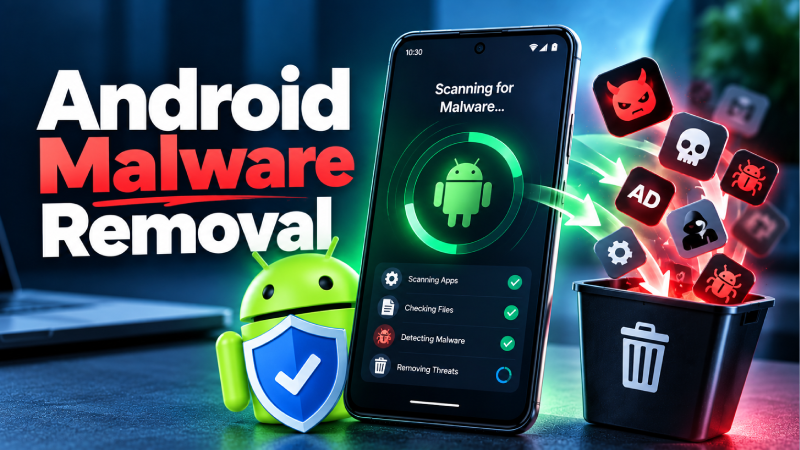
Android malware is software designed to perform unwanted or harmful actions on a device. Depending on the type, it may display unwanted advertisements, steal information, abuse permissions, monitor activity, or interfere with normal phone operation.
Malware can arrive through malicious apps, fake software, unsafe websites, phishing links, or applications installed from sources outside Google Play.
Some threats are designed specifically to target financial information. For example, RemControl Android malware is a banking focused threat that uses Android capabilities to interact with infected devices.
Before You Remove Malware: Confirm the Problem
Not every slow or overheating Android phone has malware.
Battery degradation, limited storage, outdated software, demanding applications, poor network conditions, and browser problems can also cause unusual behavior.
Look for multiple warning signs rather than relying on one symptom. Persistent pop ups, unfamiliar applications, unexpected redirects, unexplained account activity, or major changes that began after installing an unknown app deserve closer attention.
Google also lists persistent pop ups, unwanted software, unexpected browser behavior, slow performance, and other unusual activity among possible signs of unsafe software. Its malware removal guidance also provides steps for dealing with suspected unsafe software.
How to Remove Malware From an Android Phone
Follow these steps in order. Start with the built in Android security tools before moving to more advanced options.
1. Run a Google Play Protect Scan
The first step is to check your phone with Google Play Protect.
Google Play Protect checks applications for potentially harmful behavior. It can scan apps installed through Google Play as well as potentially harmful apps obtained from other sources. If it detects a harmful application, it may warn you, disable the app, or remove it.
To check Play Protect:
- Open the Google Play Store.
- Tap your profile picture.
- Select Play Protect.
- Start a scan if the option is available.
- Follow the instructions if a harmful app is detected.
- Open Play Protect settings and make sure app scanning is enabled.
Google recommends keeping Play Protect enabled. It also provides an option to improve harmful app detection for applications installed from outside Google Play.
2. Remove Apps You Do Not Trust
Review the applications installed on your phone and look for anything unfamiliar.
Google also recommends removing apps that you do not trust when troubleshooting suspected malware.
Pay particular attention to apps that:
- You do not remember installing
- Were installed shortly before the problem started
- Came from an unknown website
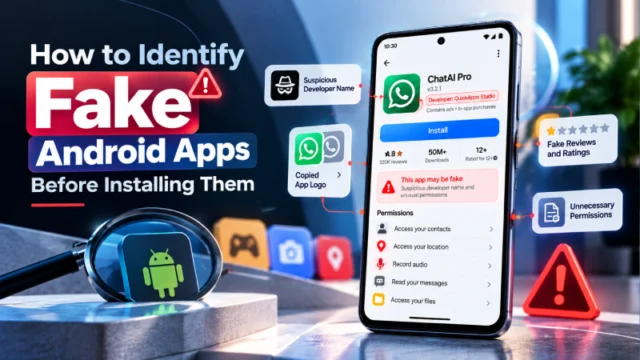
- Have misleading names or icons
- Request permissions unrelated to their purpose
- Continue running unusual activity after you close them
To remove an unwanted app:
- Open Settings.
- Go to Apps or Apps & notifications.
- Open the list of installed applications.
- Select the suspicious app.
- Tap Uninstall.
- Confirm the removal.
The exact menu names can vary between Samsung, Google Pixel, OnePlus, Xiaomi, Motorola, and other Android devices.
3. If an App Will Not Uninstall, Check Its Access
Some suspicious applications may have been granted powerful access that makes removal more difficult.
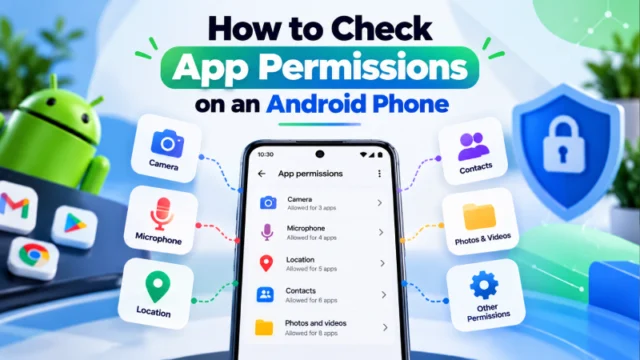
Before trying to delete the application again, review its special access and app permissions.
Check whether the app has access to features such as:
- Accessibility
- Device administration
- Notifications
- SMS
- Files
- Camera
- Microphone
- Location
- Installing unknown applications
Android’s permission controls allow you to review and change access granted to individual applications.
An app requesting sensitive access does not automatically mean it is malware. The important question is whether the permission makes sense for what the application is supposed to do.
4. Review Accessibility Access
Accessibility access deserves additional attention because legitimate accessibility tools can have powerful capabilities.
Android’s AccessibilityService framework allows accessibility services to interact with aspects of the device on behalf of users who need assistance. Malicious applications can attempt to abuse powerful device capabilities, so unexpected accessibility access should be investigated.
If you find an unfamiliar application using accessibility access, review it carefully and revoke the access if appropriate before attempting to remove the application.
This is particularly relevant when investigating sophisticated Android banking malware. Our guide to RemControl Android malware explains how a real banking threat uses Android capabilities as part of its attack chain.
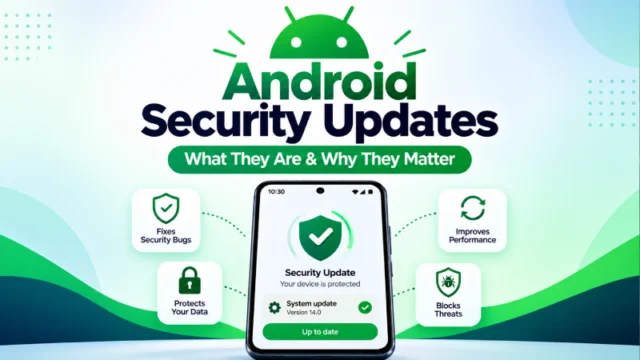
5. Update Android and Security Patches
After removing suspicious software, check for available Android and security updates.
Updates can include security fixes that address vulnerabilities affecting Android devices and applications.
To check for updates:
- Open Settings.
- Look for System, Software update, or a similar option.
- Check for available Android updates.
- Check for Google Play system updates if available.
- Install pending updates.
- Restart your phone if required.
The exact location of these settings varies by manufacturer and Android version.
6. Check Your Android Security and Privacy Settings
Android provides security and privacy controls that can help identify potential problems.
On supported versions, open:
Settings → Security and privacy
Depending on your Android version, security and privacy may appear as separate sections.
Look for:
- Security alerts
- Play Protect warnings
- System update information
- Privacy permission information
- Account security warnings
- Other recommendations shown by Android
If Android reports a security problem, follow the recommended action rather than ignoring the warning.
7. Restart the Phone and Check Whether the Problem Continues
After removing suspicious applications and installing updates, restart your Android phone.
Then check whether the original symptoms remain.
For example:
- Are pop ups still appearing?
- Is the phone still unusually slow?
- Is the battery still draining unusually quickly?
- Are unfamiliar applications still appearing?
- Are browser redirects continuing?
- Are suspicious notifications still being displayed?
If the problem disappears, continue monitoring the device and keep Play Protect enabled.
If the problem continues, move to the next troubleshooting steps.
Can Safe Mode Help Remove Android Malware?
Safe Mode can help troubleshoot problems caused by third party applications because Android loads the device with a limited set of software.
The exact method for entering Safe Mode differs between manufacturers, so check your phone manufacturer’s instructions rather than relying on one button combination for every Android device.
Once in Safe Mode, check whether the suspicious behavior continues. If the problem disappears, a recently installed third party application may be responsible.
You can then review recently installed apps and remove suspicious software.
Safe Mode is primarily a troubleshooting method. It does not automatically scan your phone for malware or guarantee that an infection has been removed.
What If Malware Is Causing Pop Ups in Chrome?
Not every “virus” warning displayed in a browser means your Android phone is infected.
Some websites use aggressive notifications, fake security warnings, redirects, or deceptive pop ups to convince users that their device has a virus.
If the problem appears only while browsing, check your browser settings and website notification permissions.
Do not tap suspicious “virus detected” buttons or install an application simply because a website tells you that your phone is infected.
Instead, close the suspicious page and use Android’s built in security tools to investigate the device.
What If Malware Has Accessed Your Banking Information?
Take the situation seriously if you entered banking credentials, payment information, passwords, or one time codes while suspicious software was active.
Start by stopping sensitive activity on the potentially compromised phone.
Then:
- Contact your bank or financial service if you notice unauthorized activity.
- Change important passwords from a device you trust.
- Review recent account activity.
- Enable two step verification where available.
- Follow your bank’s instructions for securing the account.
- Remove the suspicious application from the Android device.
- Consider a factory reset if the malware cannot be removed.
If you suspect a banking trojan specifically, do not assume that uninstalling the app automatically reverses information that may already have been exposed.
When Should You Factory Reset an Android Phone?
A factory reset should generally be considered a last resort, particularly because it removes data and applications from the device.
Google’s current malware guidance says that if malware signs continue after the recommended cleanup steps, you may need to reset the Android device or contact the manufacturer for help.
Before resetting:
- Back up important personal files carefully.
- Make sure you know your Google Account credentials.
- Confirm that important photos and documents are backed up.
- Make sure you can access your important accounts.
- Record any information you need to restore essential services.
After the reset, install applications again from trusted sources instead of immediately reinstalling every unknown or unnecessary application.
How to Factory Reset an Android Phone
The exact reset process depends on your Android manufacturer and version.
Generally, you can find the option under a menu similar to:
Settings → System → Reset options → Erase all data
The wording and location may be different on Samsung, Pixel, OnePlus, Xiaomi, Motorola, and other devices.
A factory reset permanently removes the data stored on the device, so make sure important information has been backed up before proceeding.
If you are unsure about the reset process, use your phone manufacturer’s official support instructions.
How to Prevent Android Malware After Removal
Removing malware is only part of the process. You also need to reduce the chances of the same problem happening again.
Download Apps From Trusted Sources
Whenever possible, install applications through Google Play.
Google recommends Google Play as the preferred source for Android applications and warns that downloading apps from unknown sources can put your device and personal information at risk.
Avoid installing:
- Cracked applications
- Pirated apps
- Modified APKs from unknown websites
- Apps sent through unexpected messages
- Fake updates
- Suspicious applications promoted through pop ups
Keep Google Play Protect Enabled
Keep Google Play Protect turned on so your device can continue checking applications for potentially harmful behavior.
Review App Permissions
Periodically review which applications can access sensitive information such as your:
- Camera
- Microphone
- Location
- Contacts
- SMS
- Photos and videos
- Files
Remove permissions that an application does not reasonably need.
Keep Android Updated
Install Android security updates and Google Play system updates when they become available.
Updates can provide important security fixes and improve the overall protection of your device.
Be Careful With APK Files
An APK file is not automatically malware, but installing applications from unknown sources can increase security risk.
Before installing an APK, consider why you need it, where it came from, and whether the application is available through a trusted source.
Can Malware Come Back After Removal?
It can if the underlying cause has not been addressed.
For example, reinstalling the same suspicious application, restoring an unsafe application, continuing to install unknown APKs, or leaving compromised accounts unsecured can create additional risk.
After removing malware, update the device, review permissions, keep Play Protect enabled, and reinstall only applications you trust.
Does a Factory Reset Remove Android Malware?
A factory reset removes the applications and user data stored on the device and can be an important final troubleshooting step when malware symptoms continue.
However, you should not treat a factory reset as the first solution to every Android security problem.
Start with Play Protect, remove suspicious applications, review permissions, update Android, and investigate account security first. If problems continue, follow Google’s guidance or contact the device manufacturer.
Frequently Asked Questions
How do I remove malware from an Android phone?
Start by running Google Play Protect, removing suspicious applications, checking app permissions, installing Android and security updates, and reviewing security settings. If the problem continues, consider Safe Mode troubleshooting or a factory reset as a last resort.
Does Android have a built in malware scanner?
Yes. Google Play Protect checks applications and devices for potentially harmful behavior. It can warn about harmful applications and, in some cases, disable or remove them.
Can I remove Android malware without a factory reset?
In many cases, you can start with less drastic steps such as running Play Protect, uninstalling suspicious applications, reviewing permissions, and installing security updates. Google recommends considering a reset if malware symptoms continue after the recommended cleanup steps.
Should I use an antivirus app on Android?
Google Play Protect provides built in protection against potentially harmful applications. Some users may choose additional security software, but you should avoid installing multiple unknown security applications simply because a pop up recommends them.
What should I do if a suspicious Android app will not uninstall?
Review the application’s permissions and special access, including any device administration or accessibility access it may have. Remove inappropriate access where possible and then try uninstalling the application again. If you cannot resolve the problem, consult your device manufacturer’s support documentation.
Can malware steal banking information from an Android phone?
Some types of Android malware are designed to target financial information, credentials, messages, or other sensitive data. If you believe a malicious application may have accessed your banking information, contact your financial institution and secure your accounts from a trusted device.
Is every slow Android phone infected with malware?
No. Slow performance can result from many causes, including limited storage, aging hardware, background applications, battery degradation, software issues, or outdated applications. Look for multiple unusual symptoms before concluding that malware is responsible.
Final Thoughts
Removing malware from an Android phone does not always require a factory reset. Start with the built in security tools: run Google Play Protect, remove applications you do not trust, review sensitive permissions, install available updates, and check your security settings.
If the problem continues, use additional troubleshooting methods and consider a factory reset only when necessary. After cleaning the device, stick to trusted applications, keep Android updated, and leave Play Protect enabled.
The goal is not only to remove the current threat but also to prevent another suspicious application from causing the same problem.