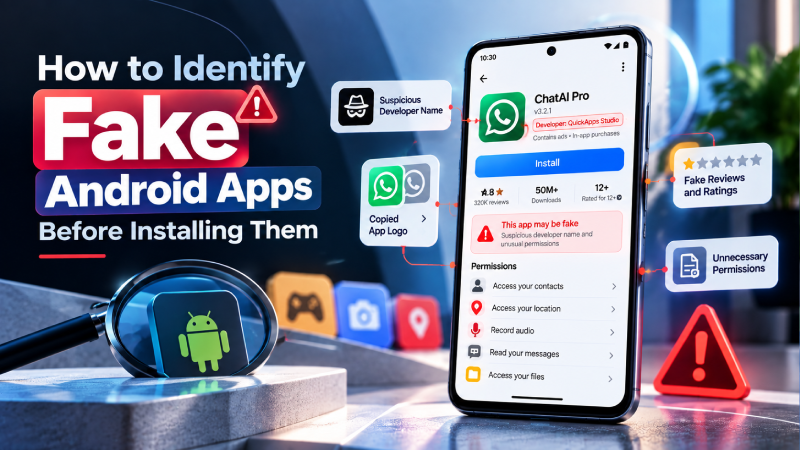
Fake Android apps can look surprisingly similar to legitimate applications. They may copy an app’s name, icon, screenshots, description, or branding to convince users that they are installing the real thing.
A fake app can expose your personal information, display unwanted ads, steal account credentials, or install malicious software. Google Play Protect provides an important layer of protection, but checking an app yourself before installation is still a useful security habit.
The good news is that you can identify many suspicious apps by checking a few details before tapping Install.
What Is a Fake Android App?
A fake Android app is an application that impersonates or closely copies a legitimate app, brand, service, or developer.
For example, a suspicious app may use:
- A name similar to a popular app
- A copied or slightly modified logo
- Screenshots taken from the legitimate app
- A misleading description
- A developer name that looks similar to the real company
- Unnecessary or excessive permissions
- A download link from an unofficial website
Not every unfamiliar app is malicious, and a low download count alone does not prove that an app is fake. The safest approach is to look for several warning signs together.
Why Are Fake Android Apps Dangerous?
Fake apps can create different types of security and privacy problems.
Depending on the app and its behavior, the risks can include:
- Malware installation
- Account credential theft
- Unwanted advertising
- Privacy violations
- Unauthorized access to sensitive information
- Financial fraud
- Device or account abuse
Google Play Protect checks apps from Google Play and also scans potentially harmful apps installed from other sources. It can warn users, disable harmful apps, or remove them when necessary.
However, security tools should be treated as one layer of protection rather than a replacement for checking an app before installing it.
10 Signs of a Fake Android App
1. The App Name Looks Slightly Different
Start with the name.
Scammers may create names that look almost identical to popular apps. A small spelling difference, additional word, unusual punctuation, or phrase such as “Official,” “Update,” “Pro,” or “Support” can be a warning sign.
Do not rely only on the first search result. Open the listing and check the complete app information.
If you are trying to install an app from a specific company, compare the app name with the name shown on that company’s official website.
2. Check the Developer Name
The developer or publisher is one of the most useful details to check.
If you are looking for an official banking, shopping, social media, streaming, or productivity app, verify that the developer corresponds to the company or organization behind the service.
Be cautious when:
- The developer name is misspelled
- The name contains unusual extra words
- The developer has no credible connection to the brand
- The app claims to be official but is published by an unrelated developer
You can often verify the legitimate developer through the company’s official website rather than relying only on a search result.
3. Compare the App Icon and Screenshots
Fake apps often imitate the visual identity of popular applications.
Look closely at:
- The app icon
- Logo proportions
- Colors
- Screenshots
- Text inside screenshots
- Branding
- Interface elements
A copied icon may look almost identical at first glance but contain a small change.
Also compare the listing with the app information provided on the company’s official website. If the screenshots, logo, or branding do not match, investigate further before installing.
4. Check Downloads, Ratings, and Reviews
Google recommends checking an app’s ratings, number of downloads, and individual reviews when deciding whether an app is reliable.
However, these numbers should not be treated as proof that an app is legitimate.
Instead, look for patterns.
Be cautious if:
- A supposedly popular app has surprisingly little history
- Reviews are extremely repetitive
- Many reviews appear generic
- Recent reviews report suspicious behavior
- Users mention unexpected advertisements or permissions
- The app’s popularity claims do not match its download history
Read several recent reviews rather than relying only on the overall star rating.
5. Read the App Description Carefully
A legitimate app normally explains what it does and how it works.
Look for:
- Clear information about the app’s purpose
- Consistent branding
- Useful feature descriptions
- Professional contact information
- Links that appear to belong to the actual developer
Be cautious when the description contains unusual claims, misleading information, excessive promotional language, or obvious inconsistencies.
Google’s policies prohibit apps that misrepresent their functionality, impersonate other apps or entities, or mislead users.
6. Review the Permissions
Permissions are an important part of checking an Android app.
Ask yourself:
Does the permission make sense for what this app is supposed to do?
For example, a navigation app may reasonably need location access. A camera application may need camera access. But a simple calculator should not normally require broad access to sensitive information.
Pay particular attention when an unfamiliar app requests access to sensitive areas such as:
- SMS
- Contacts
- Microphone
- Camera
- Location
- Files and photos
- Notifications
- Accessibility services
A permission request does not automatically mean an app is malicious. Some legitimate apps need sensitive permissions for their core functions. The important question is whether the requested access matches the app’s purpose.
If you want to understand permissions in more detail, see our guide on how to check app permissions on Android.
7. Check Where You Found the App
The download source matters.
Google recommends getting Android apps from Google Play, while warning that apps downloaded from unknown sources can put your device and personal information at risk.
Be especially careful with app links received through:
- SMS messages
- Social media posts
- Messaging apps
- QR codes
- Pop-ups
- Unfamiliar websites
- Suspicious advertisements
A message saying “Install this update immediately” and linking directly to an APK should be treated cautiously.
If you need an app from a particular company, visit the company’s official website yourself and look for its official app download link.
8. Be Careful With APK Files
Android allows applications to be installed from sources other than Google Play, but Google specifically warns that installing apps from unknown sources can put your device and personal information at risk.
An APK file is not automatically malicious. Developers, businesses, and advanced Android users may have legitimate reasons to install APKs.
The problem is that a random APK downloaded from an unknown website is harder to verify.
Before installing an APK, consider:
- Who published it?
- Where did the download come from?
- Is the developer’s identity clear?
- Does the official company provide the same download?
- Does the app request unusual permissions?
- Is Google Play Protect enabled?
Google Play Protect can check potentially harmful apps from outside Google Play and may warn, disable, or remove harmful applications.
9. Do Not Trust an App Just Because It Is on Google Play
Google Play provides important security controls, but being listed in an official app store should not stop you from checking an app’s details.
Google Play Protect scans apps when they are installed and periodically scans devices. Google can warn users about harmful apps and may disable or remove them.
Google also has policies against impersonation, misleading behavior, malware, and other harmful practices.
Still, before installing an app, check the developer, reviews, permissions, description, and official download source yourself.
10. Be Suspicious of Apps Asking You to Disable Security
One of the strongest warning signs is an app that tells you to disable security protections before installation or use.
For example, be cautious if an app instructs you to:
- Turn off Google Play Protect
- Disable security settings
- Grant unusual device access
- Install another unknown application
- Enable unfamiliar accessibility access
- Ignore Android security warnings
Google’s mobile unwanted software policy specifically prohibits apps from deceiving users into turning off device security protections such as Google Play Protect.
How to Verify an Android App Before Installing It
You can use this simple checklist before installing an unfamiliar app.
Step 1: Find the Official App
Search for the service or company you need.
Do not immediately select the first result. Open the listing and check the details.
Step 2: Verify the Developer
Compare the developer name with the company information available through the official website.
Step 3: Check the App History
Look at:
- Download count
- Ratings
- Recent reviews
- Update activity
- App description
Consider all of these together rather than relying on one number.
Step 4: Compare the Branding
Compare the icon, screenshots, name, and description with the company’s official website or known official app listing.
Step 5: Review Permissions
Ask whether the requested permissions are necessary for the app’s actual purpose.
Step 6: Check the Download Source
Prefer Google Play or a download link provided directly through the developer’s official website.
Step 7: Keep Play Protect Enabled
Google Play Protect is enabled by default and Google recommends keeping it enabled.
You can check it by opening:
Google Play Store → Profile picture → Play Protect → Settings
Make sure Scan apps with Play Protect is enabled.
If you install apps from outside Google Play, Google also provides an Improve harmful app detection option that can provide additional checking of unknown apps.
What If You Already Installed a Suspicious App?
If you think you installed a fake or malicious Android app, do not ignore the warning signs.
Start by:
- Disconnecting from sensitive accounts if you suspect account theft.
- Uninstalling the suspicious application if possible.
- Running a Google Play Protect scan.
- Reviewing the app’s permissions.
- Checking for unfamiliar applications.
- Installing available Android and security updates.
- Changing important passwords if you entered them into the suspicious app.
- Contacting your bank immediately if financial information may have been exposed.
If the device continues showing suspicious behavior, follow our guide on how to remove malware from an Android phone.
You can also read our guide on how to tell if your Android phone has malware if you are unsure whether the device is compromised.
Can Google Play Protect Detect Every Fake App?
No security system should be treated as a guarantee that every malicious or deceptive app will be identified immediately.
Google Play Protect checks apps before and after installation and can take action when potentially harmful behavior is detected. It also checks apps installed from sources outside Google Play.
However, fake apps can use social engineering, misleading branding, or deceptive behavior that may not look like traditional malware.
That is why checking the developer, app history, permissions, download source, and official website remains important.
Are APK Files Always Dangerous?
No.
An APK is simply an Android application package. Legitimate developers and organizations can distribute applications outside Google Play.
The security risk depends largely on where the APK came from, who created it, and whether you can verify its authenticity.
Google warns that installing apps from unknown sources can put your device and personal information at risk.
If you do not know who created an APK or why it is being offered to you, avoid installing it.
A Simple 30-Second Fake App Check
Before tapping Install, ask these questions:
- Is this the correct app name?
- Is the developer legitimate?
- Does the official website link to this app?
- Do the icon and screenshots match?
- Do the reviews look genuine?
- Does the download history make sense?
- Are the permissions appropriate?
- Did I get the app from a trustworthy source?
- Is Google Play Protect enabled?
- Is the app asking me to disable security?
If several answers raise concerns, stop the installation and verify the app through an official source.
Frequently Asked Questions
How can I tell if an Android app is fake?
Check the developer name, app name, icon, screenshots, reviews, download history, permissions, description, and download source. Comparing the app with the developer’s official website is also useful.
Can fake apps appear on Google Play?
An app can potentially be listed before being detected and removed. Google uses Play Protect and other security and policy systems to identify harmful behavior, but users should still inspect an app before installing it.
Should I install an APK from a random website?
It is safer to avoid APKs from unknown websites. Google warns that apps from unknown sources can put your device and personal information at risk.
Are low ratings proof that an app is fake?
No. A low rating can have many causes. Look at reviews, developer information, app history, permissions, branding, and the download source together.
What should I do if I installed a fake Android app?
Uninstall it if possible, run Google Play Protect, review its permissions, install security updates, and change important passwords if you entered sensitive information. If financial information may have been exposed, contact your bank or financial provider promptly.
Should Google Play Protect stay enabled?
Yes. Google recommends keeping Play Protect enabled. It checks apps for potentially harmful behavior and can warn users, disable harmful apps, or remove them.
Final Takeaway
Learning how to identify fake Android apps is one of the simplest ways to reduce mobile security risks.
Before installing an unfamiliar app, verify the developer, app name, branding, reviews, permissions, download source, and app history. Prefer official sources, keep Google Play Protect enabled, and be especially careful with APK files shared through unknown websites or messages.
A few seconds of checking before installation can help you avoid a much bigger security problem later.
Sources